
The Quick Sign In feature in SecurePass is designed to speed up the sign-in process for all user types. Once enabled, users can skip specific steps during sign-in for a set duration of time after their first successful sign-in.
Purpose and Objectives
- Speed up the sign-in process for contractors and visitors.
- Users who have completed their first sign-in can use the Quick Sign In feature to bypass certain steps for a predetermined duration set by the site admin.
Key Details:
- Admins control the duration for which the Quick Sign In is active for each user.
- Customization per User: Users can be toggled individually for activation or deactivation.
- Induction step is excluded from Quick Sign In, as this only occurs annually.
Steps to Set Up Quick Sign In:
-
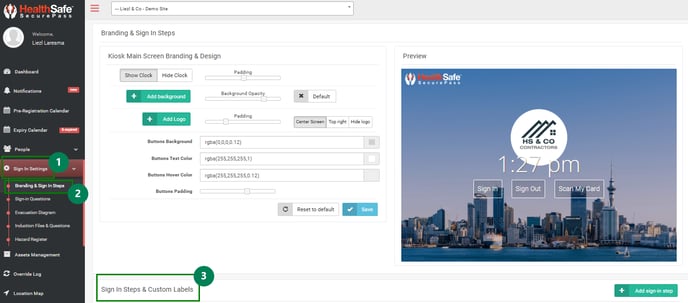
Navigate to Branding & Sign In Steps:
- Go to the Sign In Steps section in the SecurePass admin portal.
-
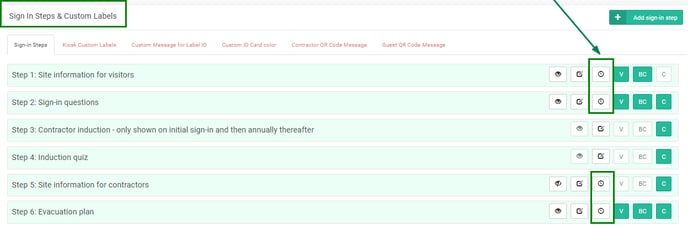
- You will see a new feature called Quick Sign In, indicated by a clock icon.
-
Set Duration for Quick Sign In:
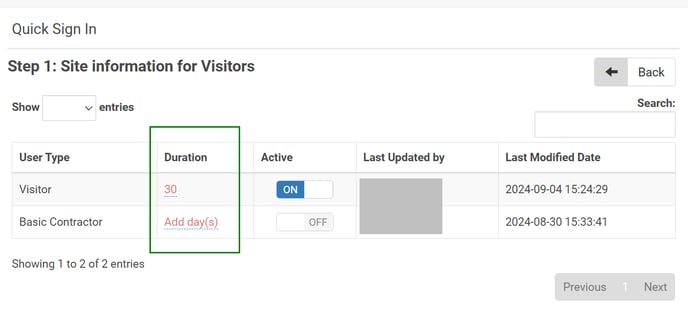
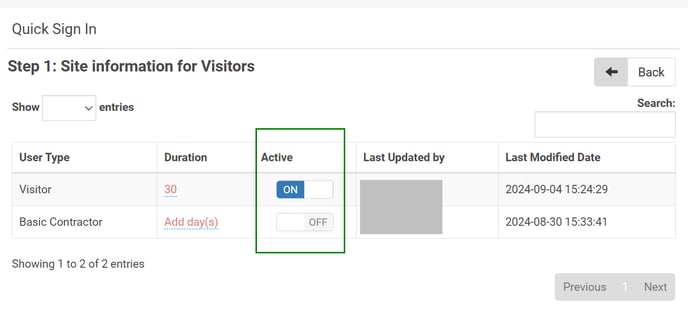
- You can assign a time duration (days) for which users can skip the selected sign-in steps.
- You can assign a time duration (days) for which users can skip the selected sign-in steps.
The maximum duration which can be set for your sign in steps is 365 days.
-
- The duration can be updated at any time, and a confirmation message will appear for verification.
-
Apply to Specific User Types:
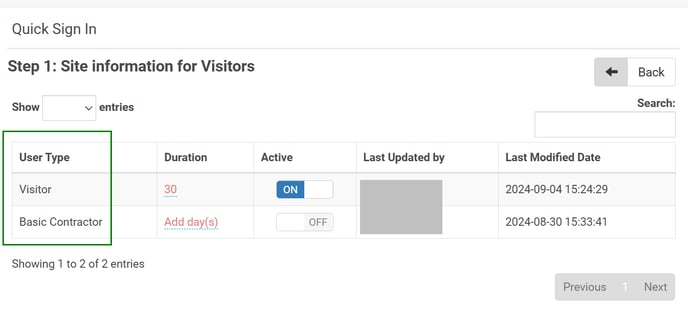
- Quick Sign In applies to external users such as contractors, staff, and visitors. The site admin has full control over who gets access to the feature.
-
Activate Quick Sign In:
- Ensure the status of the Quick Sign In feature is set to Active for it to be live.
Important Considerations:
- Duration Management: Admins can adjust the duration at any time. If the duration is shortened, the system will apply the new duration for future sign-ins.
- Individual Sign In steps: The Quick Sign In feature will need to be applied to each of your sign in steps individually.
- Updates to Sign In Step: If updates are made to a sign in step that has Quick Sign In enabled. The updated information will be presented to the user the next time they sign in.
Example Scenario:
- An admin sets a 30-day Quick Sign In period.
- A visitor signs in on June 3rd and completes the process.
- If the visitor signs in again within the 30-day period (e.g., June 4th), the system will not prompt the user for sign-in steps until the 30-day period expires (July 3rd).