
Sign-in questions were originally designed as a way for our clients to screen staff, visitors and contractors coming to their sites. Sign-in questions are an optional feature that you can choose whether or not to have in use at any of your sites. The submenu to manage your sign-in questions will only appear under the ‘Branding & Sign In Settings’ menu, if the feature is on at your site.
To manage your sign-in questions, open the ‘Sign-in questions’ submenu.
All of your active and inactive questions will appear in a list view once you open this page. To add a new question, click the ‘Add Question’ button as shown below:
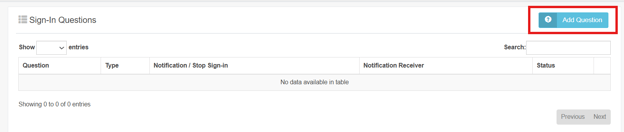
When you click to add a new question the below pop up will appear:
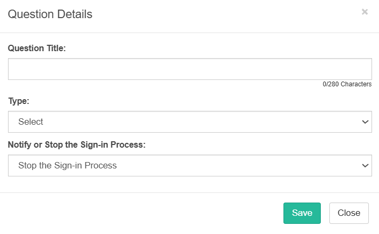
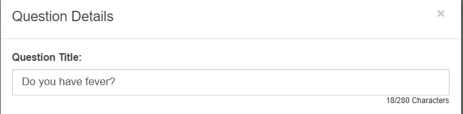
Annotate your question under the ‘Question title’ field or, if you are editing an existing question you can make the changes to the question here.
You can then select or change the question type by opening the dropdown menu.
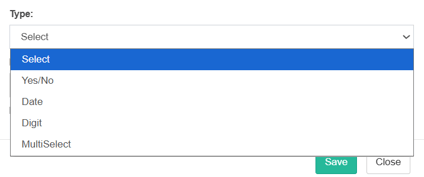
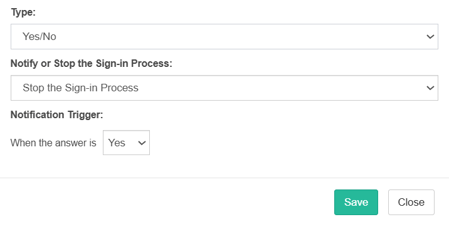
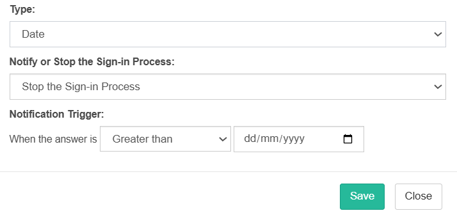
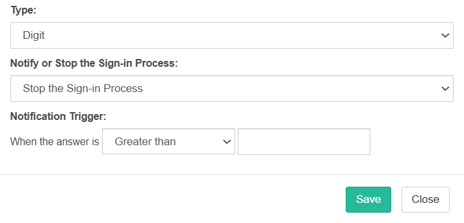
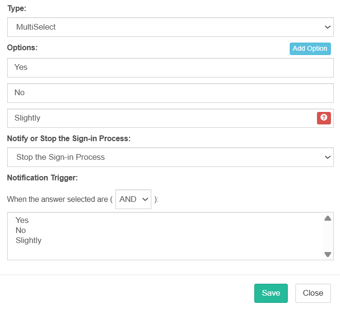
You have the option of having the answer be Yes/No, a date, digit (commonly used for temperatures) or multiple selections.
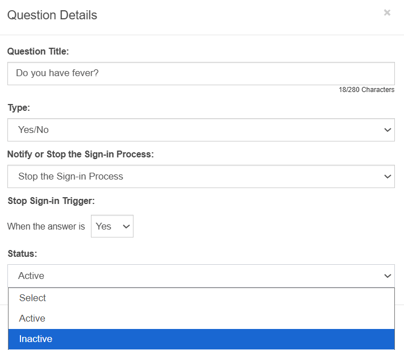
If a Yes/No response is required you will also need to select which response triggers a notification or stops the sign-in process:
If a date is required, you will need to select if the date needs to be greater or less than a particular date to trigger a notification or stop the sign in process:
If a digit is required, you will need to select if the temperature needs to be greater than or less than a particular number to trigger or stop the sign in process:
If multiselect is chosen you will need to add each of the response options and which responses will trigger a notification or stop the sign in process.
Once you have selected the type of question you then need to add the alert process which can be any one of the following:
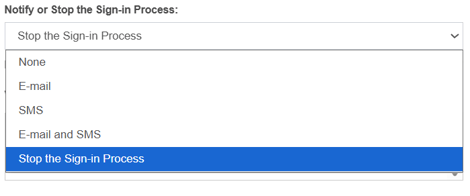
If email, sms or email and sms are selected you can select whether these notifications are sent to your single site admins (for the site you are applying the change to), only your multisite admins or both your single site and multisite admins. Please note that multisite admins are referred to as Facilities Managers in SecurePass.
SMS charges apply for SMS notifications if your company does not have an active communicator package.
If ‘Stop the sign-in process’ is selected the user attempting to sign in will be stopped from completing this once they select to move to the next screen and one or more of their responses has the stop sign-in trigger assigned to it. This is communicated on screen to the user and a email or SMS message (dependent on your notification setup) is also sent to the person they were signing in to see and your single site admins at the site. Please note that notifications are not sent to any multisite admins.
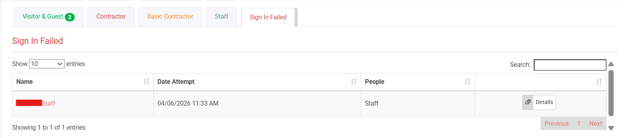
All failed sign-in attempts are recorded on the dashboard under the ‘Sign in failed’ tab:
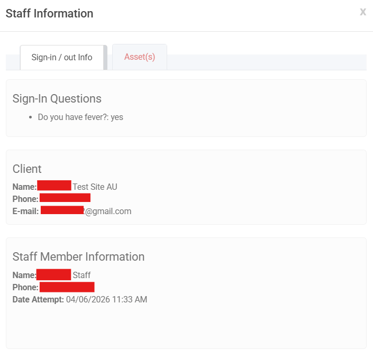
You can then select the ‘Details’ button to view the sign in questions and the users responses to see which response/s stopped the sign in process:
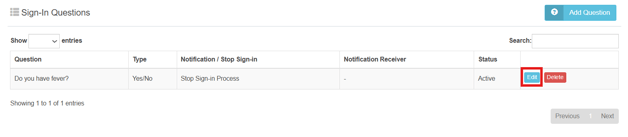
If a sign in question is no longer required you can make the question ‘Inactive’ by selecting to “edit” the question and select to make it inactive.
If you would like this feature turned on/off, please submit a support ticket here to request this.