The sign-in process in SecurePass varies depending on the user type. Below are the different ways of signing in for various users.
Visitors Sign-in
The sign-in process for visitors is identical to that for your contractors or basic contractors.
- Select "Sign in" >> Select "Visitor"
- Enter the required details:
- Full Name
- Contact Number
- Person Visiting (if required)
- Note: Email and company fields are not mandatory, so visitors are not required to enter those details.
- After entering their contact details, visitors will proceed through a series of sign-in steps similar to those for contractors.
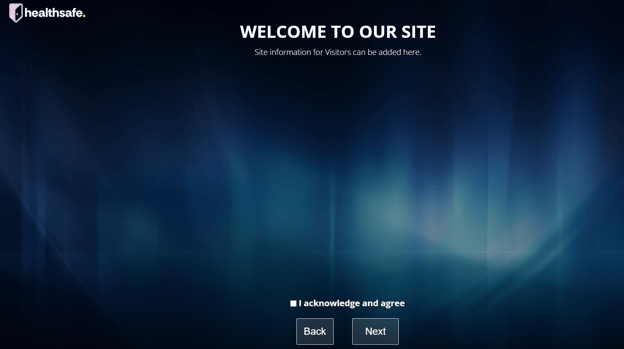
By default, these steps include:
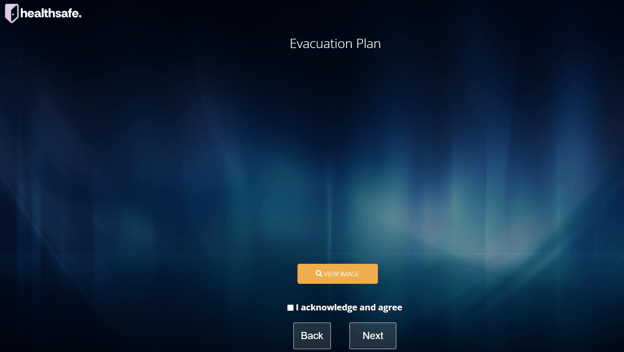
- Evacuation Plan: Visitors must view the PDF file and select "I acknowledge and agree"
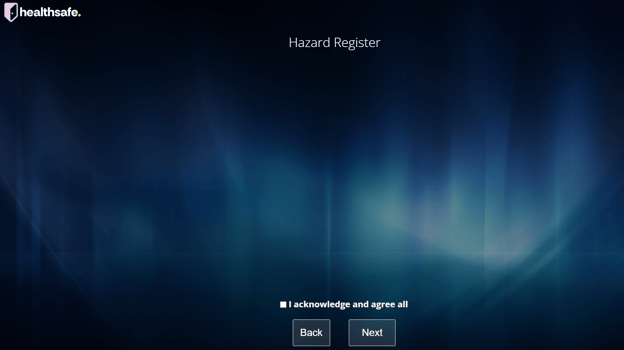
- Hazard Register: Visitors must select "I acknowledge and agree all"
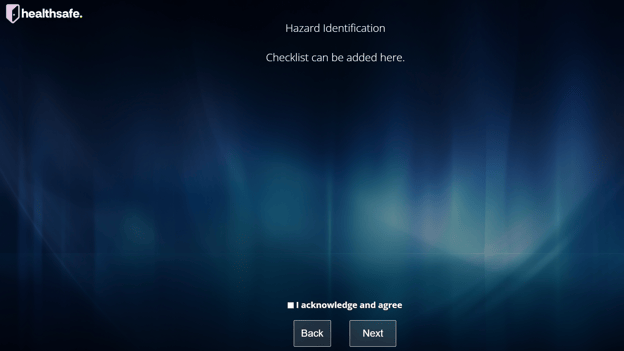
- Hazard Identification: Visitors must select "I acknowledge and agree"
Staff Sign-in
If the Staff sign-in option is enabled, follow these steps to sign in as a Staff member:
- Click "Sign-in" >> Then click "Staff"
- You will be presented with the Staff Sign-in Screen. This is the page that will be displayed to Staff when they begin the sign-in process.

- Start by typing the first three initials of your first name. A dropdown menu will appear showing added Staff members whose first names match those initials. This dropdown will appear as your staff begins typing their first three initials.
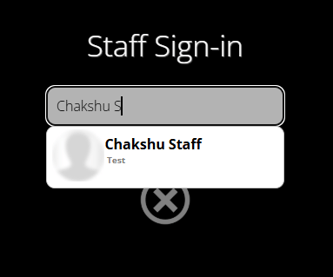
- Once the staff member’s name appears, select it.
- You will then see a screen confirming that you have successfully signed in. This confirmation screen will also be displayed for visitors and contractors who successfully sign in.
- This image will be presented once you successfully sign in. This will also be displayed for visitors and contractors who have successfully signed in as well. Please remember to sign out at the end of your shift.

Basic Contractors Sign-in
The experience that your contractors (labeled as "Basic Contractors" within SecurePass) will have when signing in via SecurePass differs significantly from that of your Staff.
Contractors will be presented with information developed by your system admins or SecurePass managers on the backend.
To begin signing in as a Basic Contractor:
- Select "Sign in" >> Select "Basic Contractor"
- Enter your details in the required fields:
- Full Name
- Contact Number
- Person Visiting (If not set to optional)
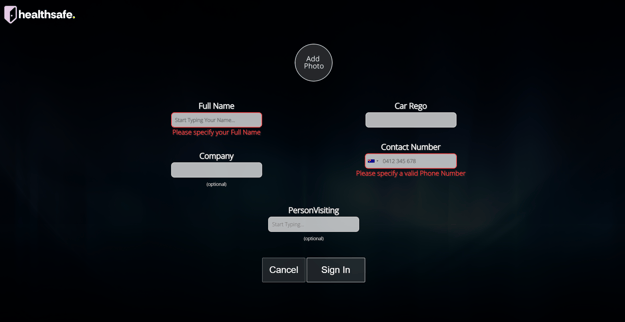
The Email and Company fields are not required, so your Contractors will not need to enter those details during their sign-in.
This information is linked to the notification your staff members will receive when they are selected as the person being visited.
After the contractor has entered their contact details, they will be presented with a series of sign-in steps, including:
- Evacuation Plan: Contractors must view the PDF file and select "I acknowledge and agree"
- Hazard Register: Contractors must select "I acknowledge and agree"
Bluetooth Label Printing for SecurePass Visitors and Contractors
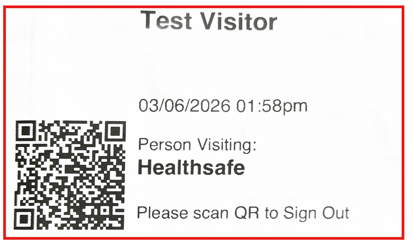
After your users have completed the sign-in process, if your Brother label printer is connected via Bluetooth to your iPad device, a label will be printed that contains the following details:
- The visitor's or basic contractor's name
- The company they are representing (if provided)
- The time they signed in
- The name of the person they are visiting (if selected)
Below is an example of what your label will look like: